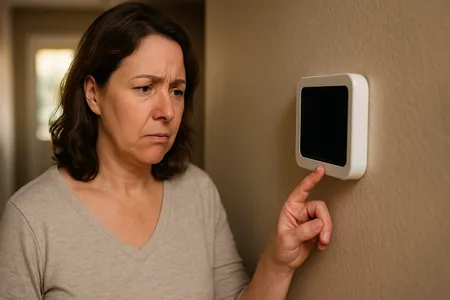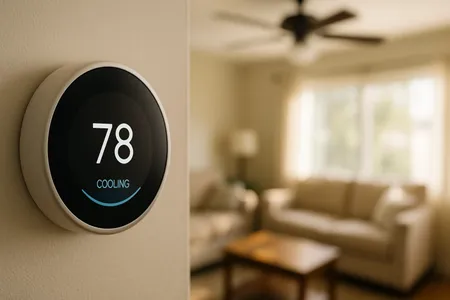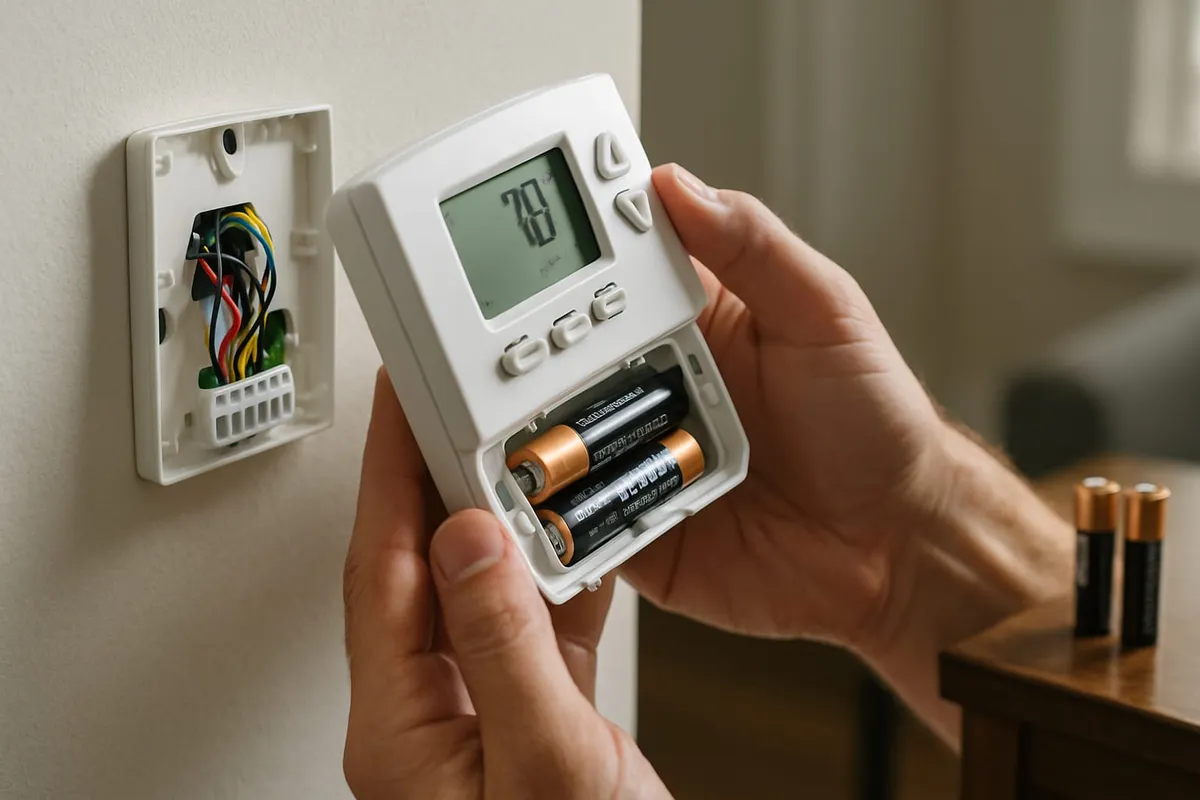
A thermostat reset can solve a surprising number of HVAC problems, from unresponsive displays and incorrect temperature readings to systems that will not turn on or off. Before calling for a service appointment, try resetting your thermostat. It takes just a few minutes and can save you the cost of a service call.
Quick version — works for most thermostats: turn it OFF, then pull the batteries for 30 seconds (battery models) or flip the HVAC breaker off for 30 seconds (hardwired models), restore power, and turn it back on. Smart models use a menu instead: Nest — Settings → Reset; Ecobee — Main Menu → Settings → Reset; Honeywell T-series — hold Menu 5 seconds → Reset. Brand-by-brand steps below.
This guide covers reset instructions for the most popular thermostat brands, plus general steps that work for most models.
What You Will Need
- Small Phillips or flathead screwdriver (for some models)
- Fresh AA or AAA batteries (for battery-powered models)
- Your Wi-Fi password (for smart thermostats that need to reconnect)
- A paperclip or pin (for models with a recessed reset button)
Time estimate: 5 to 15 minutes Difficulty level: Beginner
When Should You Reset Your Thermostat?
Reset your thermostat when you experience:
- A blank or unresponsive display
- Temperature readings that seem inaccurate
- The HVAC system not responding to thermostat commands
- Incorrect scheduling or programming
- A new Wi-Fi network or router (smart thermostats)
- A new HVAC system installation
- Erratic behavior such as the system cycling on and off rapidly
- After a power outage that may have disrupted settings
How to Reset a Honeywell Thermostat
Honeywell makes several types of thermostats, and the reset process varies by model.
Honeywell T-Series (T4, T6, T9, T10)
- Press and hold the Menu button for 5 seconds.
- Navigate to Reset using the arrow keys.
- Select Factory Reset and confirm.
- The thermostat will restart and enter the initial setup wizard.
Honeywell Home RTH Series (RTH2300, RTH6360, RTH9580, etc.)
- Turn the thermostat to OFF.
- Open the battery compartment and remove the batteries.
- Insert the batteries backward (positive to negative) for 5 to 10 seconds.
- Remove the batteries and reinsert them correctly.
- The thermostat should power on with factory default settings.
Honeywell Pro Series (T4 Pro, T6 Pro)
- Press and hold Menu for 5 seconds to enter the installer setup.
- Scroll to Reset and select it.
- Choose Factory Reset and confirm.
- The thermostat will restart and display the initial configuration screens.
Older Honeywell Round or Mercury Thermostats
These models do not have a reset function. If the thermostat is not working correctly:
- Turn the system off at the thermostat.
- Turn off the HVAC breaker for 30 seconds.
- Restore power and turn the thermostat back on.
How to Reset a Google Nest Thermostat
Nest Learning Thermostat (all generations) and Nest Thermostat E
- Press the thermostat ring to open the Quick View menu.
- Turn the ring to scroll to Settings and press to select.
- Scroll to Reset and press to select.
- Choose from the following options:
- Schedule: Clears your learned or manual schedule.
- Away: Resets the home/away detection data.
- Network: Clears Wi-Fi connection info.
- All Settings: Full factory reset that restores everything to default.
- For a full reset, select All Settings, then turn the ring to confirm and press.
- The Nest will restart and display the initial setup screens.
Nest Thermostat (2020 budget model)
- Press and hold the display for 10 seconds until the screen turns off.
- Release and press again to restart.
- For a factory reset, go to Settings > Factory Reset and follow the prompts.
Note: After a factory reset, your Nest will need to be set up again in the Google Home app, including reconnecting to Wi-Fi and reconfiguring your heating and cooling settings.
How to Reset an Ecobee Thermostat
Ecobee Smart Thermostat, Ecobee3 Lite, Ecobee Enhanced
- Tap the Main Menu on the touchscreen.
- Navigate to Settings.
- Scroll down and tap Reset.
- Choose your reset option:
- Restart: Reboots the thermostat without changing settings (try this first).
- Reset Schedule: Clears your programmed schedule only.
- Reset All: Returns the thermostat to factory default settings.
- For a full reset, select Reset All and confirm by tapping Yes.
- The thermostat will restart and launch the setup wizard.
If the Ecobee Is Unresponsive
If the touchscreen is frozen or unresponsive:
- Remove the thermostat from its wall plate by pulling it straight off.
- Wait 30 seconds.
- Reattach it to the wall plate.
- The thermostat should power on and restart.
How to Reset an Emerson Sensi Thermostat
- Open the Sensi app on your phone.
- Go to Thermostat Settings.
- Select Factory Reset and confirm.
- Alternatively, on the thermostat itself, press and hold the Up and Down buttons simultaneously for approximately 10 seconds until the display resets.
How to Reset a Basic Programmable Thermostat
For non-smart programmable thermostats from any brand:
Battery-Powered Models:
- Turn the thermostat to OFF.
- Remove the thermostat faceplate from the wall mount.
- Remove the batteries.
- Wait 30 seconds to 1 minute.
- Insert fresh batteries, making sure the polarity is correct.
- Reattach the faceplate.
- Reprogram your schedule and settings.
Hardwired Models (No Batteries):
- Turn the thermostat to OFF.
- Go to your electrical panel and turn off the HVAC system breaker.
- Wait 30 seconds.
- Turn the breaker back on.
- Turn the thermostat back on.
- Reprogram your settings if they were lost.
Troubleshooting After a Reset
If resetting does not resolve the issue, try these additional steps:
Display Is Still Blank
- Check for dead batteries and replace them.
- Verify power at the circuit breaker.
- Check that the thermostat is securely connected to its wall plate.
- On hardwired models, a blown fuse on the HVAC control board could be the cause. This requires a technician.
System Still Not Responding
- Confirm the thermostat is set to the correct mode (Heat, Cool, or Auto).
- Make sure the set temperature is at least 3 to 5 degrees away from the current room temperature.
- Wait 5 minutes after making a change. Many systems have a built-in delay to protect the compressor.
- Check the HVAC breaker and the outdoor disconnect switch.
Temperature Reads Incorrectly
- Ensure the thermostat is not in direct sunlight, near a heat source, or in a draft.
- Some thermostats have a temperature offset or calibration setting in the advanced menu.
- A thermostat mounted on an exterior wall may read temperatures affected by outdoor conditions.
Safety Warnings
- Turn off the HVAC system before removing a thermostat from the wall plate to avoid shorting the low-voltage wires.
- Do not touch the exposed wires behind the thermostat. While they are low voltage (24V), they can cause a short that blows the HVAC system’s fuse.
- If you have a mercury thermostat (older round models with a visible mercury-filled glass tube), handle it carefully. Mercury is hazardous. Do not open the glass tube. Dispose of mercury thermostats at a hazardous waste collection site, not in regular trash.
- Take a photo of the wiring before removing any thermostat from the wall plate. This ensures you can reconnect the wires correctly.
When to Call a Professional
A reset is a simple first step, but contact an HVAC technician if:
- The thermostat display remains blank after fresh batteries and a breaker reset
- The HVAC system does not respond after a successful thermostat reset
- You need to replace the thermostat or upgrade to a smart model
- The thermostat wiring appears damaged, burnt, or corroded
- The thermostat is reading temperatures that are significantly off (more than 3 to 5 degrees)
- You are upgrading from a mercury thermostat and need proper disposal
If the reset did not fix it, that is exactly the kind of call we handle every day across Central Texas. Call (817) 704-0706 or request a thermostat assessment — and if you are weighing an upgrade instead, our thermostat installation cost guide shows what to expect.
Frequently Asked Questions
Will resetting my thermostat erase my schedule?
It depends on the type of reset. A soft reset or restart preserves your settings. A factory reset erases everything and returns the thermostat to its out-of-the-box state. If you perform a factory reset on a smart thermostat, you will need to reconnect to Wi-Fi and reprogram your schedule.
How often should I reset my thermostat?
You should not need to reset your thermostat regularly. A reset is a troubleshooting step, not routine maintenance. If you find yourself resetting frequently, there may be an underlying issue with the thermostat, wiring, or HVAC system that needs professional diagnosis.
Can a bad thermostat damage my HVAC system?
A malfunctioning thermostat can cause short cycling (rapid on-off switching), which stresses the compressor and other components over time. If your system is cycling excessively, address the thermostat issue promptly to prevent wear on the HVAC equipment.
Should I upgrade to a smart thermostat?
Smart thermostats like the Nest, Ecobee, and Honeywell Home T-series offer significant energy savings (8 to 15 percent on heating and cooling according to ENERGY STAR), learning capabilities, and remote control from your phone. If your current thermostat is basic or outdated, upgrading is one of the most cost-effective improvements you can make. Check our thermostat savings calculator to see potential savings.
Next Steps
If a reset did not solve the problem, or you want to prevent future issues, try these next:
- Run a full diagnostic — Our HVAC Troubleshooter walks you through every possible cause when your thermostat or HVAC system is not responding correctly.
- Still not working after the reset? — A reset fixes software and settings issues, but hardware failures need a different approach. Read our guide on thermostat not working for deeper troubleshooting.
- Thinking about upgrading? — If your thermostat is outdated or unreliable, our thermostat installation cost guide breaks down what a new unit costs to buy and install.
- Optimize your settings after the reset — Now that your thermostat is fresh, set it up for maximum savings using our guide on the best thermostat settings to save money.
- Ready to talk? — Contact us for a free evaluation.
Need help with your thermostat or HVAC system? In Central Texas, Texas Temp Masters offers thermostat installation, replacement, and HVAC troubleshooting. Call (817) 704-0706 to schedule service.